Guide
Jobs and drafts
Every run and every draft, wherever it was asked for.
Jobs lists every run in your workspace, newest first, from wherever it was asked for: a Tool's page, a Flow, Chat, your AI or the API, each saying where it came from.
Three views. Large shows each result as a card you can play; Small fits about twice as many; List shows one row a job, with its tool, what it worked on, when, how long and its price. Your choice is kept in this browser.
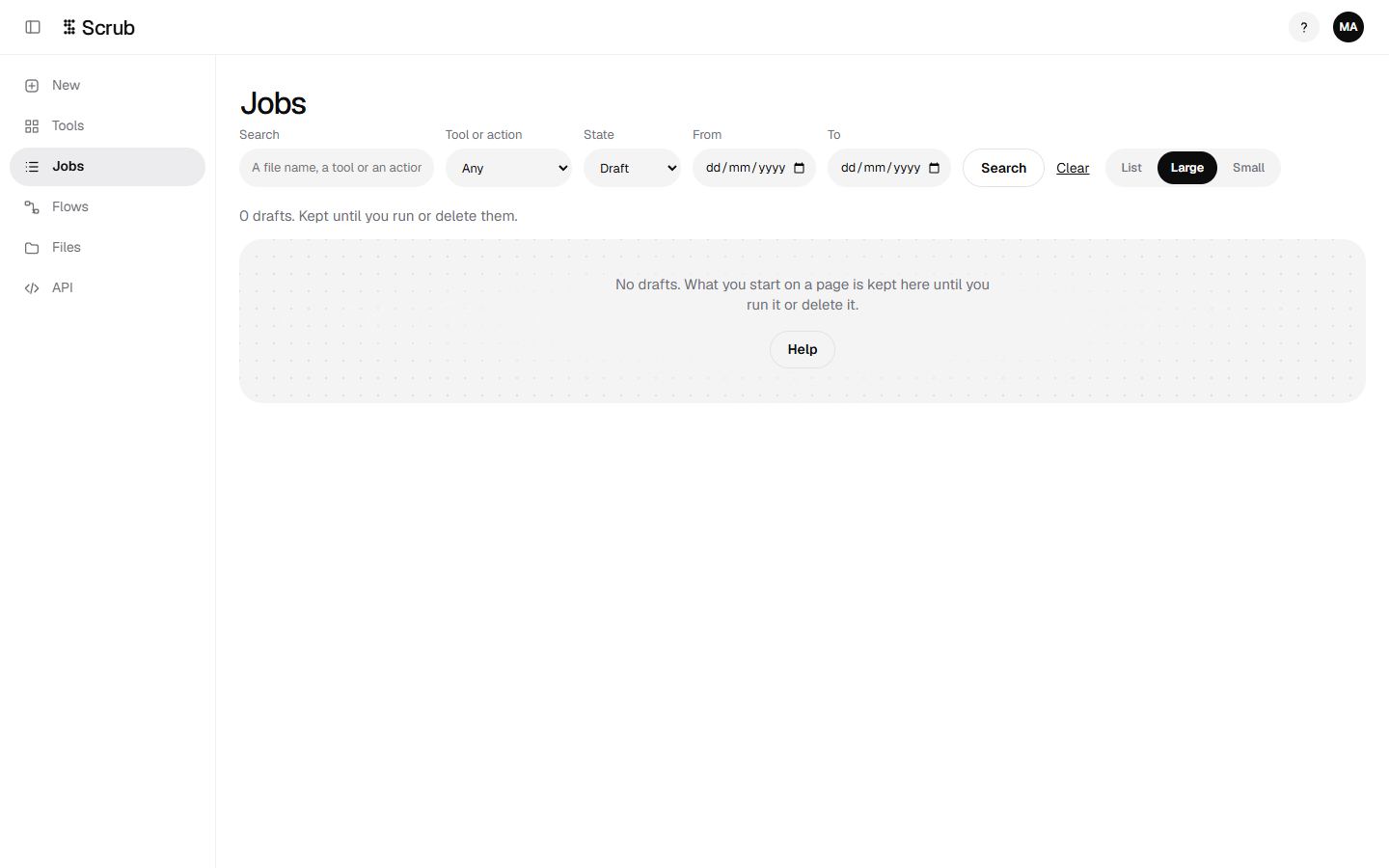
Find one. Search by the tool, the words in it, or the days it ran. State narrows it to running jobs, finished ones or drafts.
A job's page. Opening a job shows it on its tool's page, as it was made: the result on the stage, Download, the receipt and Next. Change a setting and Run becomes Update; the job you changed stays as it was.
While one runs. It fills in as it goes, on Jobs and on its page.
Drafts. Work set up and not run yet is saved as you go, as a draft. Drafts sit among the jobs with a dashed edge and Draft where a price goes, by when they were saved. A draft opens its page as you left it; run it, and it becomes a job.
How long they are kept. Results are kept until you delete them. Drafts are kept until you run or delete them.
Step by step
Jobs and drafts
1Open Jobs and switch between Large, Small and List.
2Choose Draft in State.
3Open a draft and run it.
Was this helpful? Tell us