Guide
Getting started
Sign up, make your first piece of work from nothing, and the five places Scrub works.
Scrub does the work you ask for, for you and for any AI you use. Every piece of work shows its price before it runs, and you see the result when it is done.
Sign up. Open app.scrub.app and continue with Google, Microsoft, GitHub or your email; with email, Scrub sends a link and a code, and either signs you in. No card is needed. A new workspace starts with work to try Scrub on; Pricing says how much.
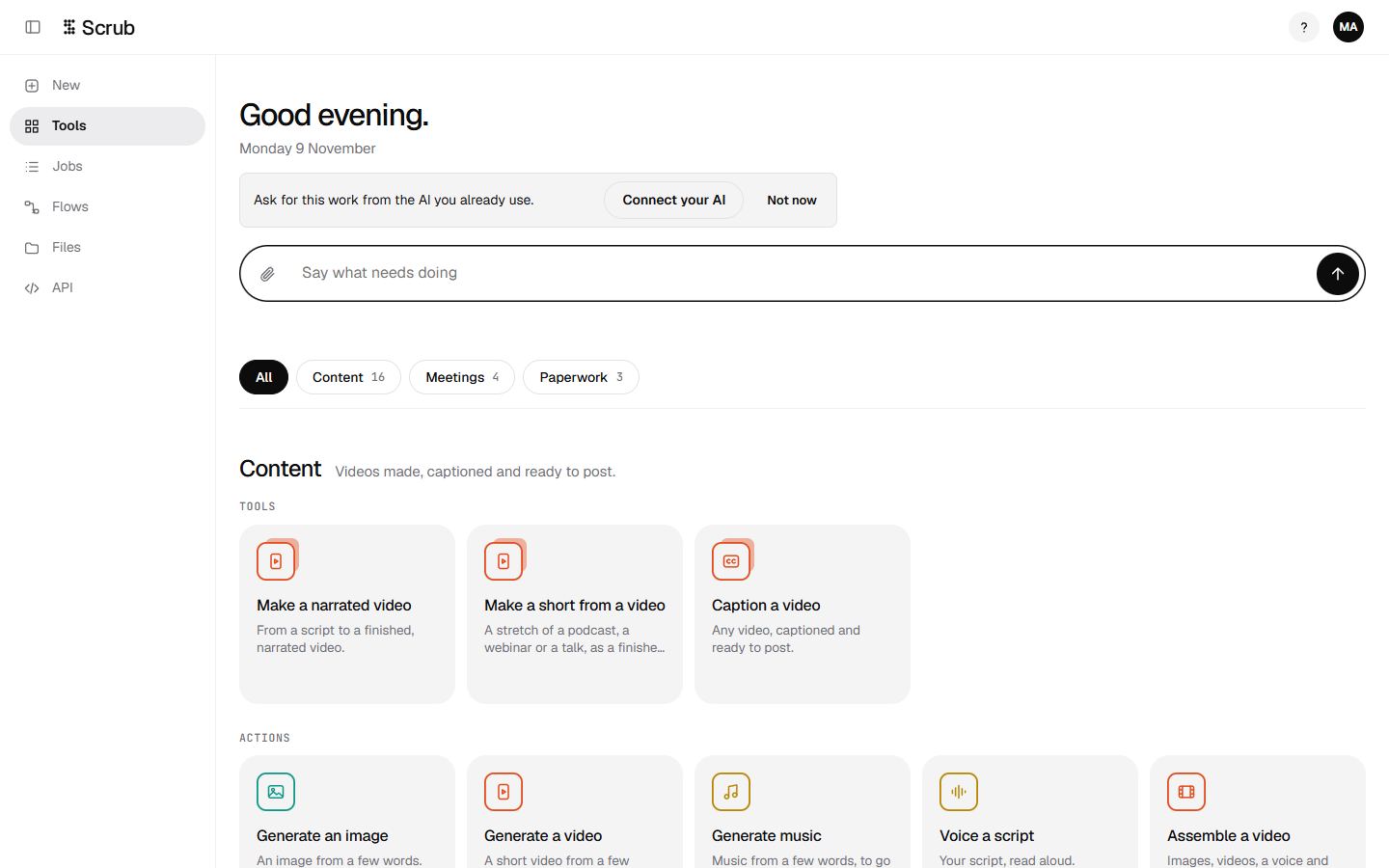
Tools and Actions. An Action does one thing, such as Transcribe a video. A Tool joins Actions into one outcome, such as Caption a video, run as one job. Both are on Tools.
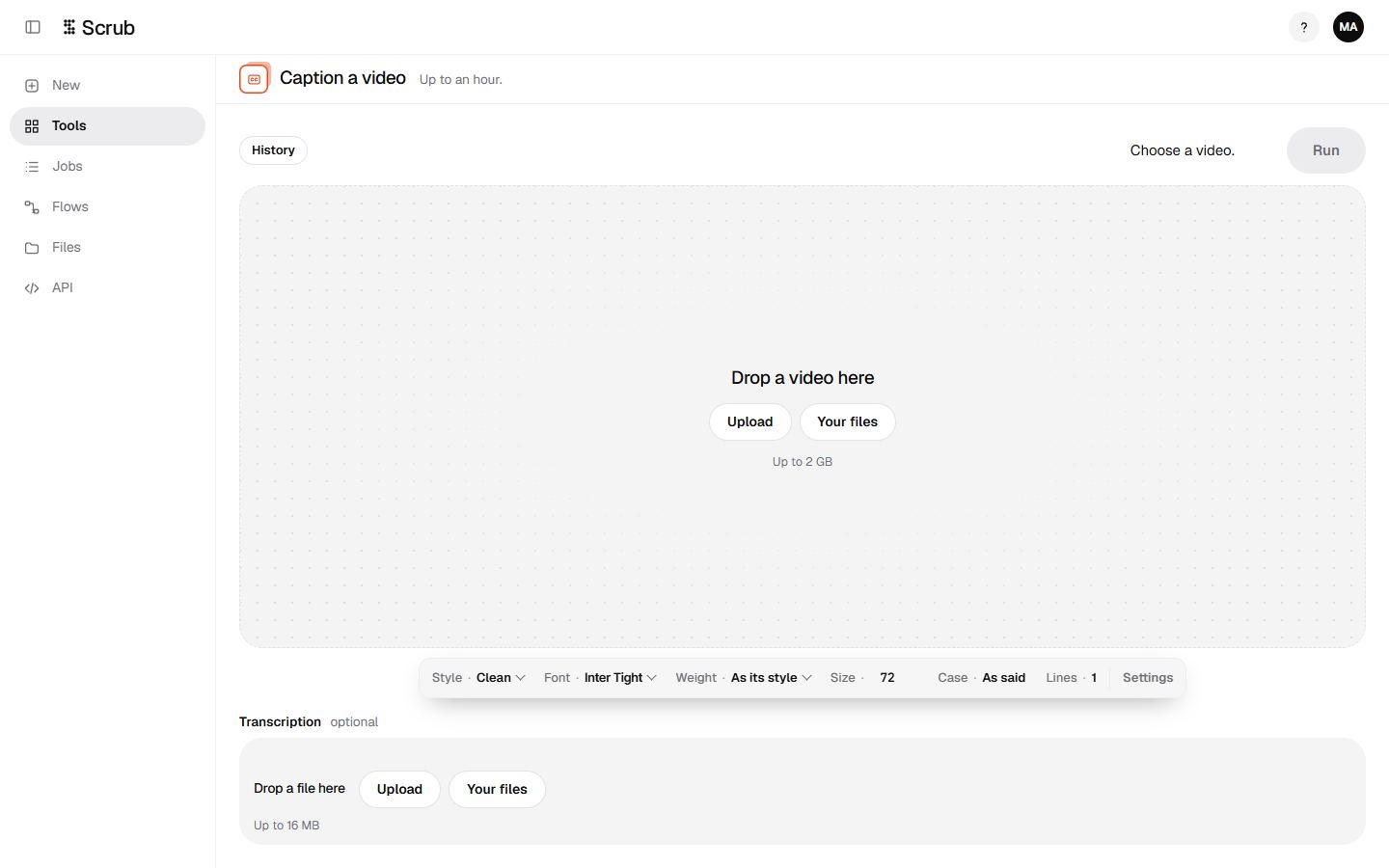
Your first job, from nothing. Open a Tool or an Action and give it what it asks for: drop a file on the page, choose one from Your files, or type the words. Anything the work needs that another action can make is offered right there. Change what you like on the Bar, read the price on Run, and press Run. The page can be closed while it works. The result opens on the same page, with Download and a receipt that says how long it took and what it cost.
Where your work is. Every run is in Jobs, with any draft you have not run yet. What you gave Scrub and what it made are in Files.
The five places. The same work, at the same price, wherever you are:
- Tools, each action's and tool's own page.
- Flows, your own chain of Tools and Actions, run as one job.
- Chat, where you say what you need and Scrub does it.
- Your AI, such as Claude, connected over MCP.
- The API, from your own code.
Asking instead. Say what you need in Chat. Scrub chooses the work, asks only what changes the result or the price, and runs it when you press Run.
Step by step
Your first job, from nothing
Was this helpful? Tell us