Guide
Files and folders
Everything you gave Scrub and everything it made, in one place, in folders.
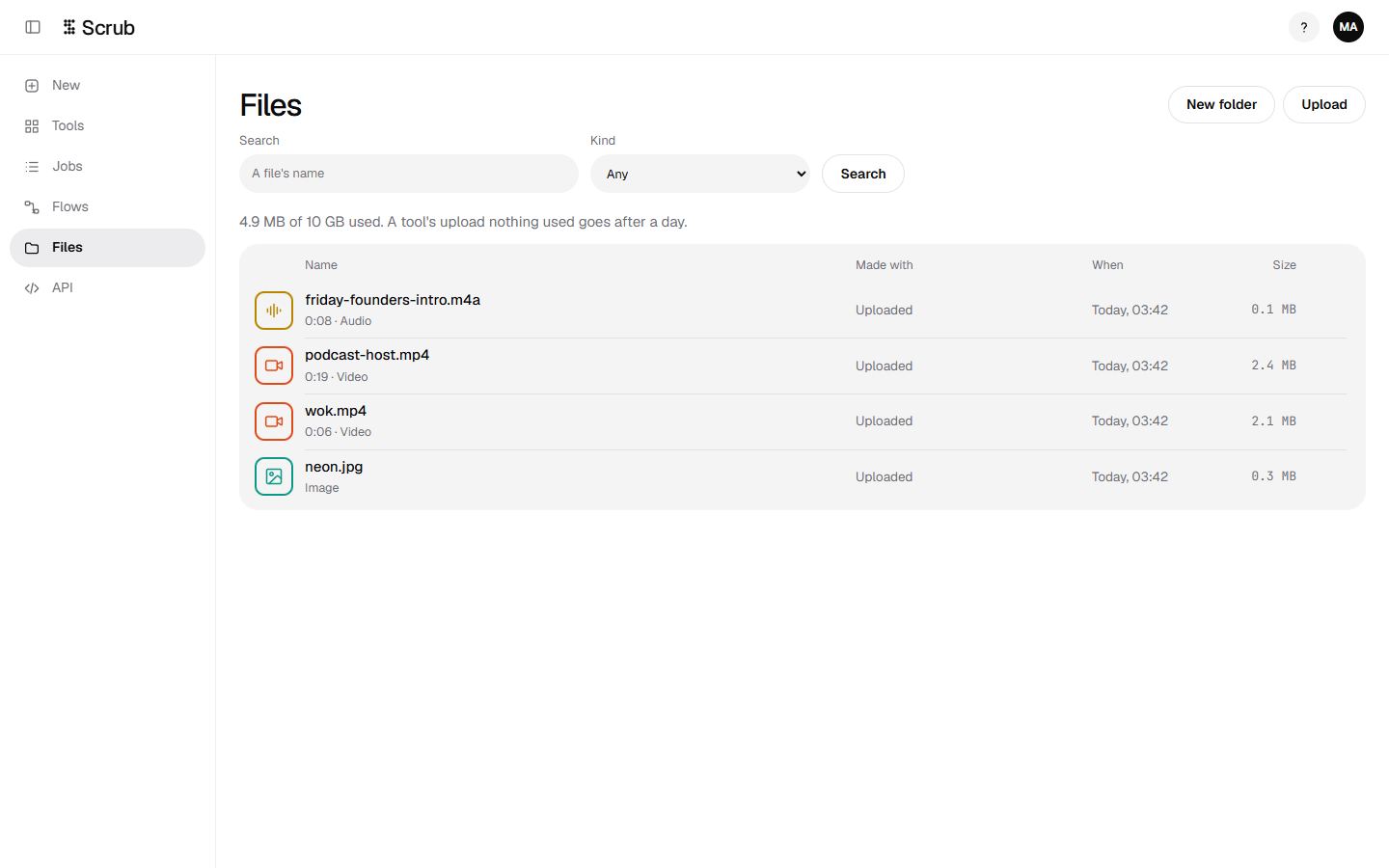
Files holds every file in your workspace: what you uploaded and what Scrub made, newest first, with what made each one, when, and its size.
Upload. Press Upload, or drop files anywhere on the page. They go straight into Files, ready for any Tool or Action, up to 4 GB each. A file already there says so and is not sent twice.
Find one. Search by its name, or choose a kind: Videos, Sound, Images or Documents. A search looks in every folder.
Folders. New folder makes one; open it to Rename or Delete folder. Put files in a folder from a file's Move to, or drag them onto it. A folder holds files, one level deep. Deleting a folder keeps its files in Files.
Use one. On any action's page, Your files lists only the files that page takes. A result can go straight into the next step from its page.
Take it away. Open a file to download it. Download everything puts every file into one zip, free.
How long files are kept. Files are kept until you delete them, on every plan. An upload no tool used goes after a day, unless you uploaded it in Files. Delete a file to give its room back; it cannot be undone.
Your AI sees the same. An AI connected to Scrub lists, finds, moves and downloads your files the same way, and gives you the link.
Step by step
Files and folders
1Open Files and press New folder.
2Move three files into it.
3Open the folder.
Was this helpful? Tell us